How to Check Your National ID Online in the Philippines
If you want to check your National ID online, the right method depends on what you need to know. You may want to see if your Digital National ID is ready, verify whether an ID is real, find your ID number, or check if your physical card has been printed or delivered. In this guide I will explain answer your question “How can I check my National ID Online?”
Quick Answer: To check your National ID online, use the eGovPH app to view your Digital National ID, everify.gov.ph/check or verify.philsys.gov.ph to confirm an ID is authentic, and the PHLPost tracker with your transaction number to check delivery status. There’s no public lookup by name alone.
Why Checking Your National ID Can Mean Different Things
Many online guides confuse different National ID services. Before starting, identify what you want to check so you can use the correct source or platform.
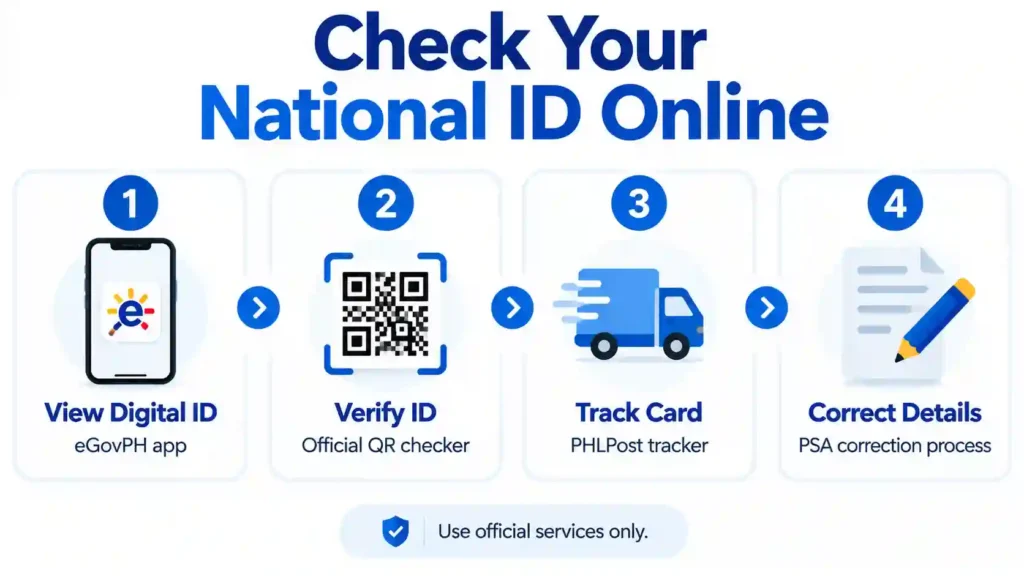
Each task requires a different official source. The services do not all provide the same information. Below, we explain each method, starting with checking your National ID number.
How to Check Your National ID Number
Before checking your number, understand that the Philippine National ID system uses different numbers. People often refer to all of them as their National ID number, which can cause confusion.
Number | What it means | Where to find it |
|---|---|---|
PSN (PhilSys Number) | A permanent 12-digit number assigned during registration | Not fully printed on the physical card for privacy reasons |
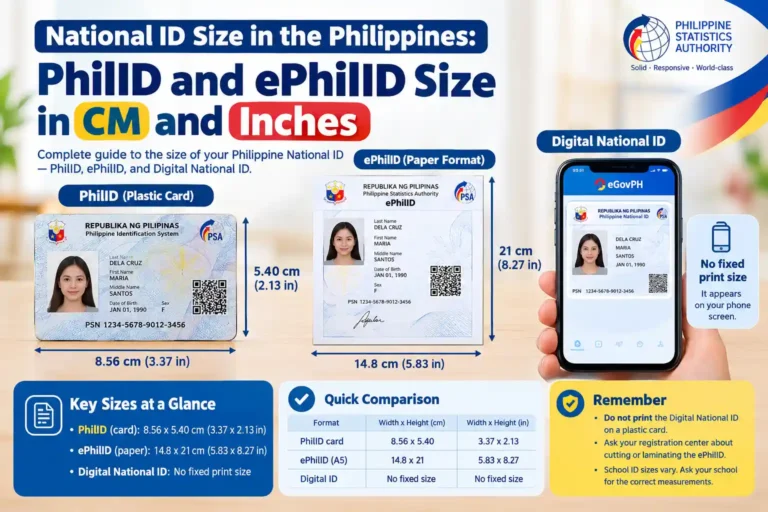
PCN (PhilSys Card Number) | The number printed on the physical PhilID card | On the front of your physical PhilID |
Note: Some websites mention a CRN (Common Reference Number) as part of PhilSys. This is incorrect. The CRN belongs to the older UMID system used by SSS and GSIS. It is different from the numbers used by PhilSys.
If you already have your physical PhilID, you can find your PCN on the front of the card. You do not need to search for it online.
If your card has not arrived, you cannot retrieve your PSN or PCN through a public website. Keep your registration transaction slip as a reference. You can also access your Digital National ID through your eGovPH account once it becomes available.
How to Check and Access Your Digital National ID Online
The Philippine Statistics Authority (PSA) has changed how people access their Digital National ID. Older guides may tell you to visit a website, enter your name and birthdate, and view your ID directly. That process is no longer available in the same way. Now you can access or view your Digital National ID only through the eGovPH app.
Steps to Check Your Digital National ID in the eGovPH App
If your ID does not appear, your record may still be processing or may not yet be available in the app. This can happen to people who registered recently. Some current reports suggest that availability may take around a week after registration is completed, but PSA has not published this as a guaranteed processing time. The actual waiting period can vary.
What If Your Liveness Check Fails?
The eGovPH app uses a liveness check during facial verification. This step helps confirm that you are a real person rather than someone using a photograph or video. Common causes include:
Try again in a well-lit place, keep your face clearly visible, and make sure your app is updated. If the scan continues to fail, the problem may be related to the app or a difference between your current appearance and your stored photo. Repeated failures do not automatically mean your National ID registration is invalid.
After your Digital National ID becomes available, you can save or print a digital copy of your National ID for your records. If your physical card has been lost, stolen, or damaged, you may need to follow the separate National ID replacement process.
How to Check If Your National ID Card Has Finished Printing
Checking whether your physical National ID card has been printed is different from checking its delivery status. The Philippine Statistics Authority (PSA) handles the ID production process, while PHLPost handles delivery after the card is handed over for dispatch.
There is no separate official online tool that directly confirms whether your card has been printed. However, you can check the PHLPost tracking system using the tracking number provided on your transaction slip, if available.
If the system shows tracking updates, it means your card has entered the delivery process. If no results appear, your card may not have been dispatched yet, or its tracking details may not be available in the system.
Important: A missing tracking result does not prove that your card has not been printed. Similarly, a tracking update does not independently confirm the exact printing date. Use PHLPost tracking to check delivery progress, and contact the appropriate registration center if you need confirmation of your card’s production status.
How to Check If a National ID Is Real (QR Code Verification)
If you want to confirm whether your own National ID is real, you should use an official QR code verification tool. The Philippines has two relevant services, and each supports different ID formats.
Option 1: PhilSys Check (verify.philsys.gov.ph)
PhilSys Check verifies the QR code printed on a physical PhilID card or paper ePhilID. Follow these steps:
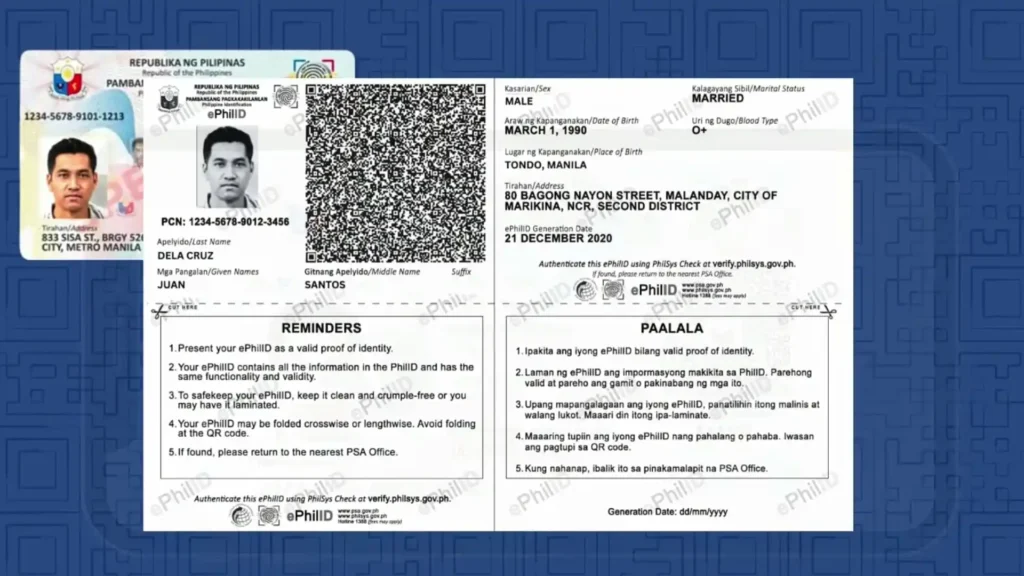
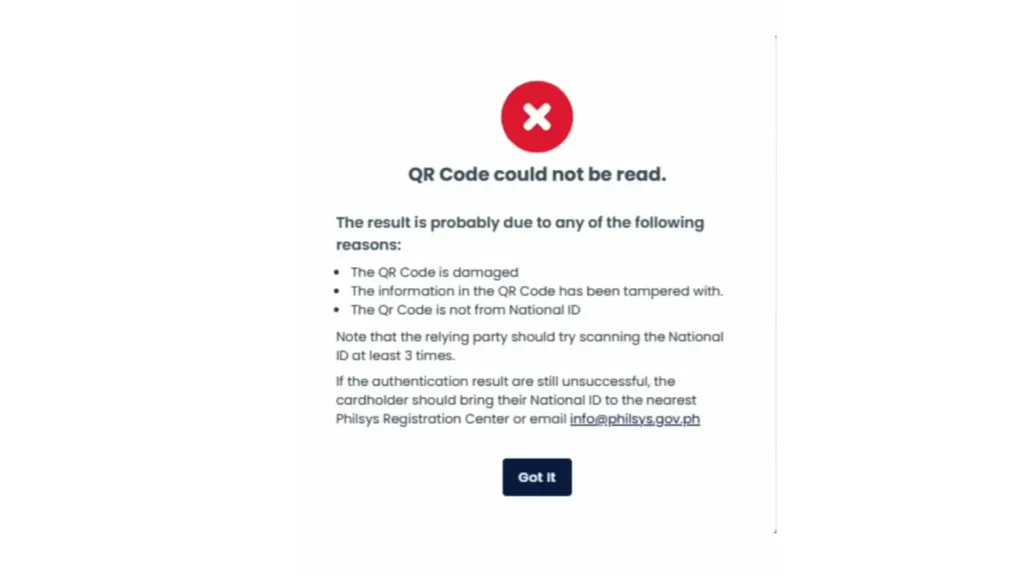
If the ID is valid, the result displays details such as the cardholder’s name, date of birth, place of birth, PhilSys Card Number, and date of issuance. If verification fails, you may see a message such as “Deactivated Card” or “QR Code could not be read.”
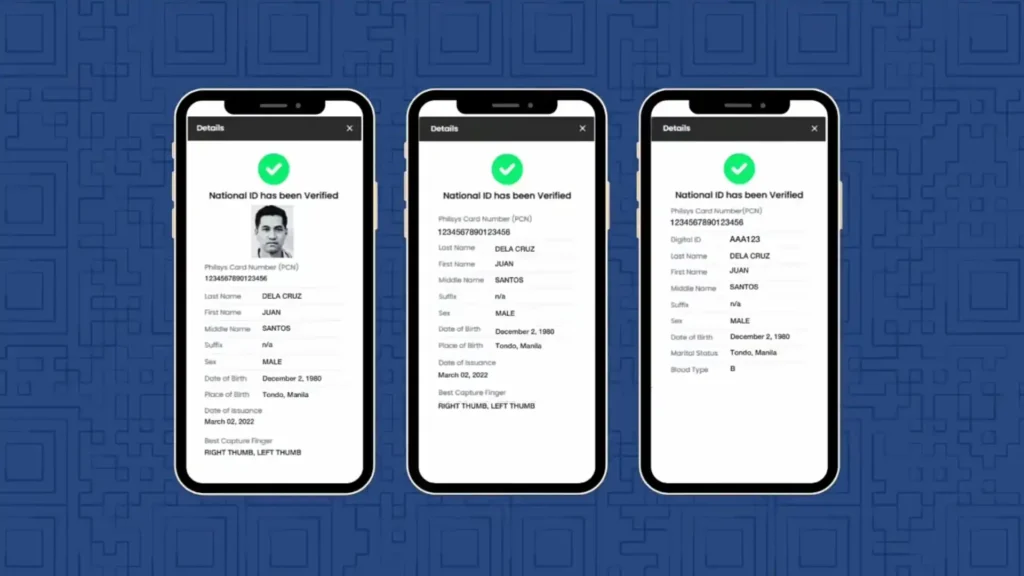
Make sure the QR code is clear and your camera can scan it properly before assuming that an ID is invalid.
Option 2: National ID Check (everify.gov.ph/check)
The National ID Check tool allows you to verify a Digital National ID displayed on a phone, as well as supported physical National ID cards and paper IDs. To verify an ID, follow these steps:
Use National ID Check when you need to verify a Digital National ID. The older PhilSys Check tool is intended for physical PhilID cards and paper ePhilIDs, while National ID Check also supports the digital format.
Important safety reminder: Always check the website address before scanning a QR code or entering personal information. Fake websites may use names that closely resemble official government domains, sometimes with a small spelling change or an extra hyphen. Use the official website and avoid sharing personal details with unfamiliar sites.
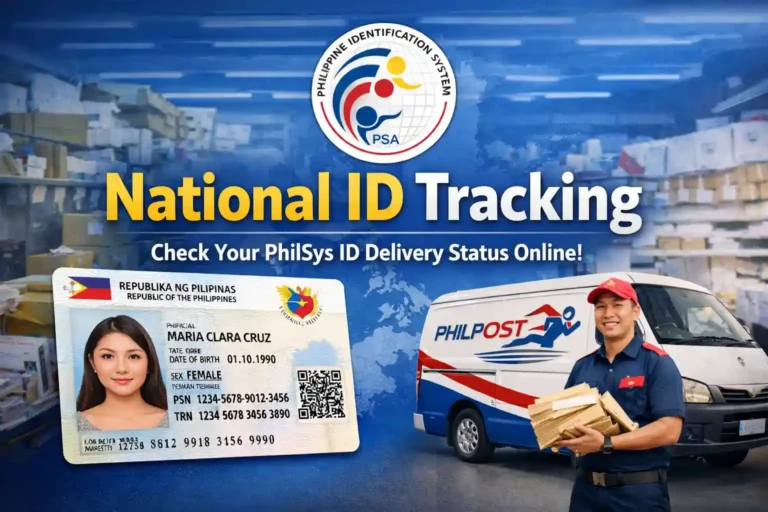
How to Check Your National ID Delivery Status
If you have completed registration and are waiting for your physical National ID card, you need to track its delivery.
Find the 29-digit transaction number on your registration slip. Then enter it into the official PHLPost tracking system to check the latest available status.
The tracking information may show whether your card is still being processed, moving through the delivery system, or out for delivery. The information available depends on the latest tracking update.
How to Check Your Child’s or a Minor’s National ID
Parents can check their child’s National ID using different steps depending on the child’s age and registration details.
For children under five, the National ID record is linked to a parent or guardian’s registration details. Parents can check whether the child’s Digital National ID is available through the registered account, where supported. To track the child’s physical card, they can use the transaction slip provided during registration.
Children who registered using their own biometrics may need to access the eGovPH app through their own eligible account, following the required account creation and verification steps.
If the child’s Digital National ID does not appear in the app, first check the registration details and allow time for processing. If the ID is still unavailable, contact the registration center for help confirming the child’s record and its status.
How to Check Your National ID Registration Status
If you are unsure whether your National ID registration has been completed, you need to check your registration status separately from viewing your Digital National ID or tracking your physical card.
There is no public portal where you can simply enter your name to view your complete registration status. Instead, you can try the following options:
Keep your transaction slip safe, as its details may help the registration center check your records and assist with card delivery inquiries.
What If Your National ID Details Are Wrong?
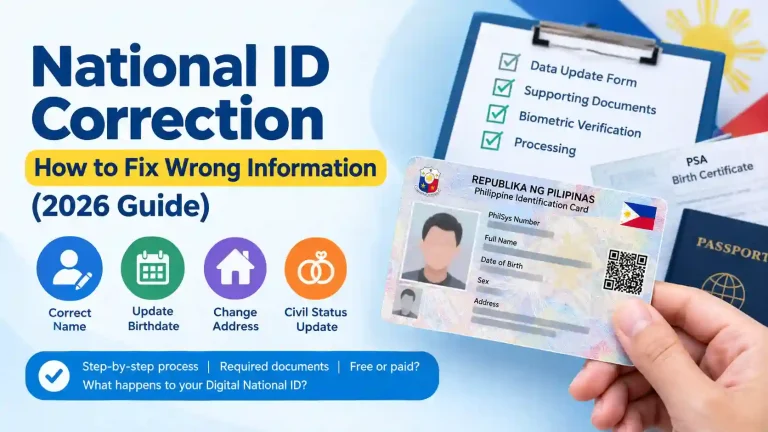
If your National ID shows incorrect personal information, such as a misspelled name, wrong birthdate, or old address, you need to request a correction through the Philippine Statistics Authority (PSA) or the appropriate registration office, depending on the type of error. Simply viewing your Digital National ID, scanning its QR code, or checking its delivery status will not correct the information.
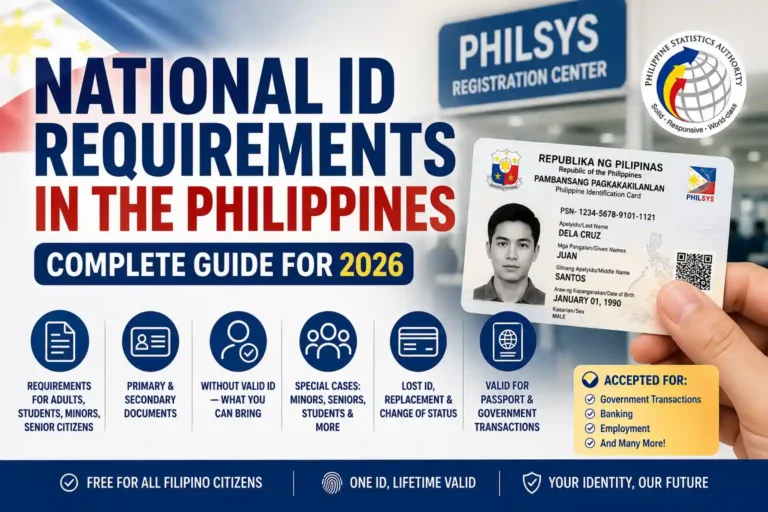
Before visiting a registration or correction center, check which documents are required for your specific error. You may need to bring supporting records, such as a birth certificate or another valid document, to prove the correct information.
Where Your National ID Gets Used After You Check It
After confirming that your National ID is available and valid, you can use it to access various services. These include SIM registration, GCash account verification, and passport applications.
For example, you can use the Digital National ID to verify your GCash account. The Department of Foreign Affairs (DFA) also accepts the Digital National ID as a primary ID for passport applications.
However, each organization may have its own verification rules. Before using your National ID, check the latest requirements of the service provider or government office to make sure your ID is accepted.
What to Do If None of These Tools Work
An online check may fail because of a technical problem rather than an issue with your National ID. Before contacting support, try the following steps:
If the problem continues, contact PSA through its hotline at 1388 or its official Facebook page, or visit a National ID registration center. Explain the issue and follow the instructions provided by the agency.
Avoid relying on third-party websites that claim they can repair your record or access your registration details. Such websites cannot directly correct your official PSA record.
Conclusion
Checking your National ID online becomes easier when you know which service you need. Use the eGovPH app to access your Digital National ID, the official QR verification websites to check whether an ID is valid, and the PHLPost tracker to follow your physical card’s progress. If you need to correct personal information, you must follow the separate PSA correction process.
The most important thing is to use the right tool for your situation and avoid unofficial websites that request personal details. This helps you check your ID more safely and understand what to do next.