How to Register SIM Using Digital National ID

Trying to register your SIM using your PhilSys National ID? You can use a National ID for SIM registration in the Philippines, but the exact process can vary depending on your network and the ID you have.

Whether you’re using Globe, Smart, TNT, or DITO, this guide shows you how to register your SIM with your physical National ID, Digital National ID, or ePhilID, where supported. You’ll also learn how to upload your ID, complete the selfie verification, and fix common problems when your ID or selfie is not accepted.

Still waiting for your physical National ID? You’ll also find out what to do if you only have a Digital National ID or ePhilID and need to register your SIM now.

Is the National ID Accepted for SIM Registration?

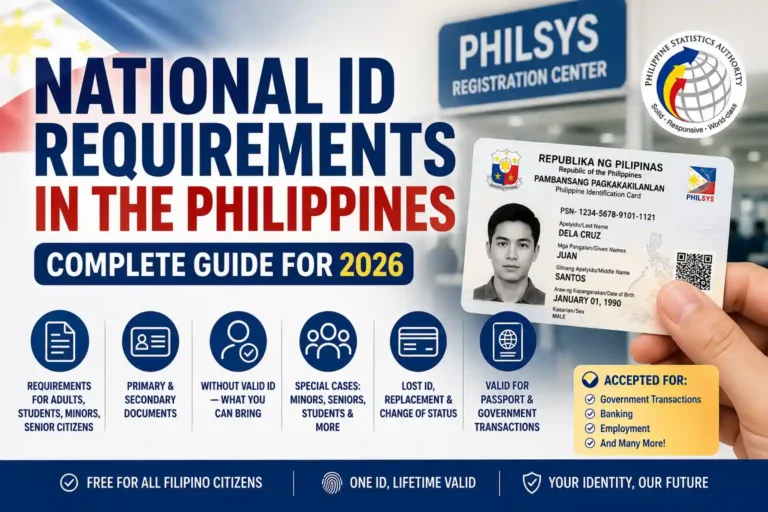
Yes. Under the SIM Registration Act (RA 11934), the PhilSys National ID (PhilID) is a valid ID for registering a SIM card. Every major network accepts it, both online and at the counter.

How to Use Your Digital National ID for SIM Registration

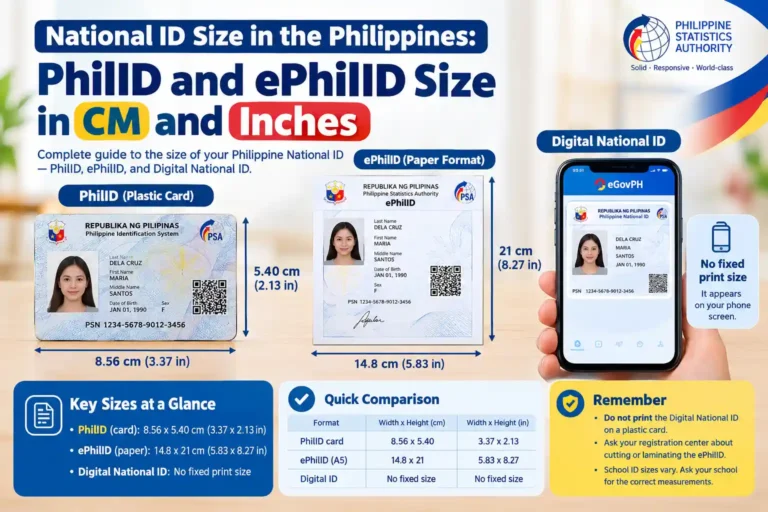
SIM registration apps do not accept a saved screenshot or PDF from your phone. They require you to take a live photo of your ID using the camera during registration.

If your Digital National ID is open in the eGovPH app on the same phone, you can use another phone to display the ID. Then use your main phone to take the ID photo when the telco app asks for it. This lets you register with your Digital National ID even when the app does not offer a gallery upload option.

  • On one phone, open the eGovPH app and pull up your Digital National ID so it’s clearly visible on screen
  • On the second phone, open the telco’s SIM registration app or site and start the registration form
  • When it asks for your ID, select National ID or PhilSys ID, then use that second phone’s camera (through the app, not your regular camera app) to take a live photo of the first phone’s screen showing your Digital National ID
  • Hold the first phone steady, in good lighting, with the QR code and all four corners visible, avoid glare from the screen itself
  • Complete the live selfie step the app asks for on the second phone, this checks your face against the ID photo just captured

Registering Online vs. At a Store

Both options work, and which one fits you depends on what format of your ID you have on hand.

  • Online: most telco apps and websites accept a photo of your National ID, including your ePhilID as a PDF or screenshot. Your photo, name, birthday, address, and QR code all need to be clear and easy to read.
  • In-store: at a Globe, Smart, TNT, or DITO branch, staff usually want your physical card or a printed copy of your ePhilID.
  • A digital ID shown on your phone screen might work in-store if staff can check it, but a printed copy avoids any back-and-forth.

How to Register with Globe

  • Go to new.globe.com.ph/sim-registration, or simreg.globe.com.ph
  • Enter your 10-digit mobile number and ask for an OTP. It expires in 5 minutes, so have your phone ready.
  • Enter the OTP, then fill in your name, birthday, gender, address, and nationality
  • Take a selfie and pick your ID type, then upload a valid government ID
  • Agree to Globe’s Privacy Notice and submit

Or use the app: open GlobeOne, tap “Register Now,” pick your account or enter your number, and confirm.

Using your Digital National ID on Globe:

  • Choose National ID or PhilSys ID as your ID type
  • Open your Digital National ID in the eGovPH app from another phone
  • Take a clear photo of digital national id and click upload.

Globe accepts the National ID, including the ePhilID, as valid identification. You can also go to any Globe store and register in person with the same National ID.

How to Register with Smart or TNT

  • Go to smart.com.ph/simreg, or simreg.smart.com.ph, or open the GigaLife app
  • Enter your mobile number and ask for an OTP
  • Pick new or existing SIM, then select National ID as your ID type
  • Upload a photo of your National ID (front side), or the right page of your ePhilID PDF, then do the live selfie.
  • If you are using digital national Id then you must have two phones or open digital national id pdf on another screen then click picture and upload it.
  • Fill in your address and other details, check everything, and submit

TNT runs on the same Smart network, so the steps are the same.

If you’re on postpaid, you usually don’t need to submit new documents, you just confirm the details you already gave when you signed up. Some people say texting “YES” to 5858 confirms your registration this way, but it’s worth checking directly with Smart since this can change.

How to Register with DITO

  • Download the official DITO app from the Play Store or App Store, or go to dito.ph/app-landing
  • Enter your DITO SIM number and open the app
  • Fill in your name, birthday, gender, and address
  • Choose National ID from the ID list and upload a clear photo
  • For digital national id use same approach described above for smart and globe sim registration.
  • Check every field carefully before you submit, since fixing mistakes afterward takes longer

DITO doesn’t have a separate website for this, everything happens inside the app. If uploads keep failing, update the app first, that fixes most upload problems.

Trouble Registering? Who to Contact

If you run into a problem, contact the appropriate support channel directly rather than trying to troubleshoot it through the app:

  • DICT/NTC hotline: 1326
  • Smart/TNT: dial *123# to check your status, or call *888 from your Smart number
  • Globe: use the Help section in the GlobeOne app, or visit globe.com.ph/help
  • DITO: call 186 from your DITO number, email customercare@dito.ph, or message @DITOphOfficial on Facebook
  • For questions about the National ID itself: PSA at 1388 or info@philsys.gov.ph

Conclusion

Your Digital National ID, ePhilID, or physical PhilID card works for SIM registration on every major network in the Philippines. Globe, Smart, TNT, and DITO all accept it, whether you register online through their apps and portals or walk into a store.

The steps are similar across networks: confirm your number with an OTP, upload your ID, complete a live selfie, and submit your details. Globe is the one network where a paper copy might take a little longer to verify, so keep your physical card handy if you’re registering there.
Whichever network you’re on, stick to the official apps and portals listed above, and don’t wait until your SIM gets deactivated to register.
Frequently Asked Questions

Yes. It’s named directly in RA 11934 and accepted by Globe, Smart, TNT, and DITO, both online and in-store.

Yes, on Smart, TNT, and DITO. Globe accepts it too, but recommends a PVC-type ID since paper copies may take longer to verify.

It gets turned off, no calls, texts, or data, until you register.

Usually not. Contact your telco directly to ask about your specific case first.

No, it’s free. Only use the official telco sites and apps listed above.

Passport, Driver’s License, UMID, PRC ID, SSS/GSIS ID, Voter’s ID, and more. The National ID is one of the most commonly used since it’s named directly in the law.

Similar Posts

Leave a Reply

Your email address will not be published. Required fields are marked *